
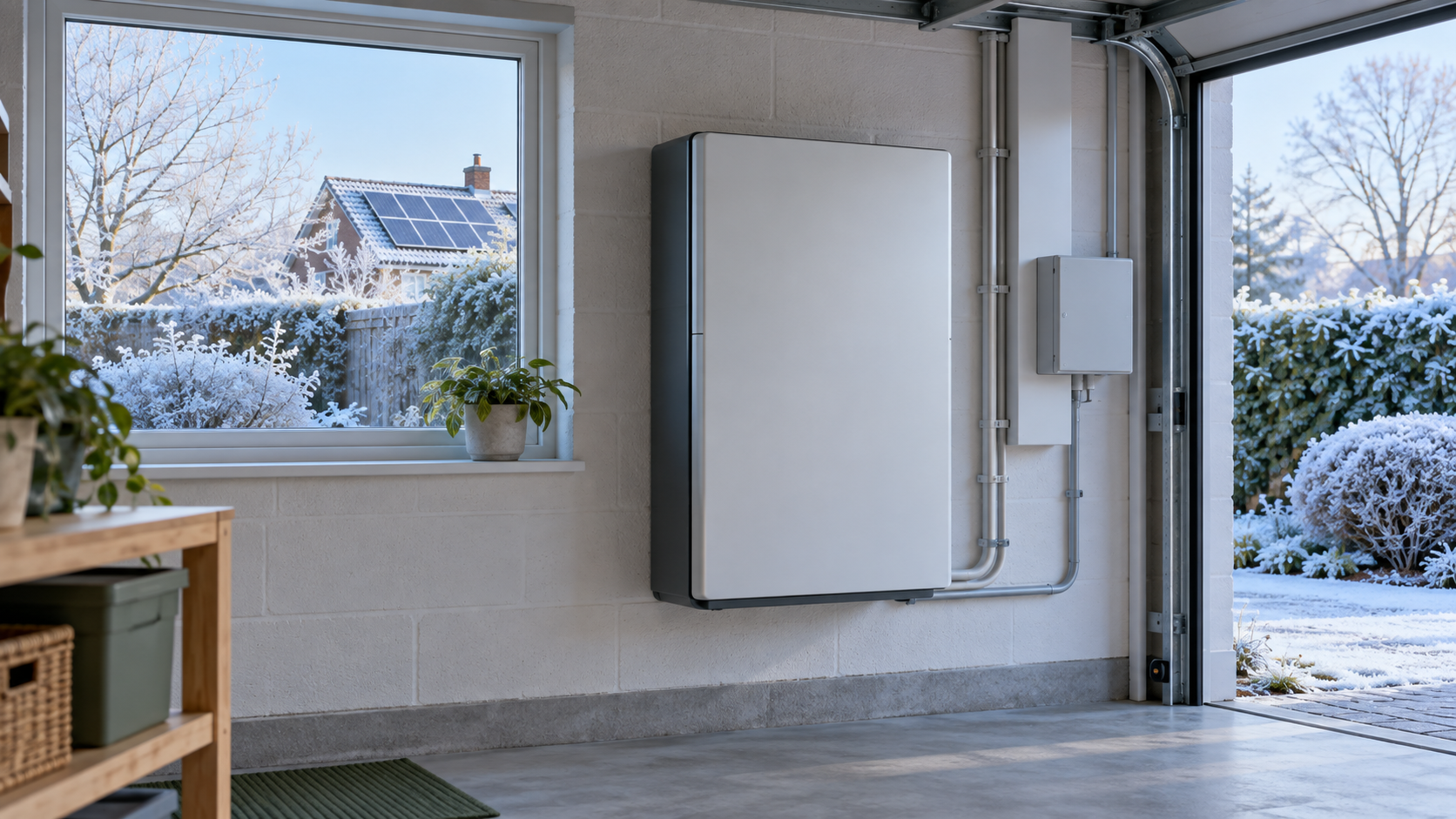
You open your solar app on a frosty morning and the battery percentage has barely moved. The panels appear to be working, yesterday’s overnight charge did not reach its usual level, and you wonder whether the installation has developed a fault.
A solar battery not charging in cold weather does not automatically mean it is broken. Temperature protection, limited solar surplus, charging schedules and missing monitoring data can produce similar-looking symptoms. The useful first step is to identify what the system is reporting before changing anything.
This guide focuses on observations you can make from your app, paperwork and a safe visual check. It is not an electrical repair procedure. Your exact battery and inverter manuals take priority.
The quick answer
Check the latest data timestamp, the exact alert, the battery’s reported temperature, available solar surplus and the charging schedule. Compare these with your model’s manual. Do not bypass temperature protection or improvise a heater. Contact your installer if the explanation remains unclear, a fault persists or the battery is approaching its low-charge limit.
First, know when to stop checking
If you notice smoke, a burning smell, hissing, swelling, leakage or unusual heat, stop troubleshooting and keep away. For smoke, fire or immediate danger, get everyone to safety and call the emergency services. Tell them a home battery is installed. Do not approach it to operate switches or attempt a repair. Follow the manufacturer’s emergency guidance.[7]
Water ingress, damaged equipment and repeated protective trips also need professional attention. This article does not ask you to remove covers, probe terminals or repeatedly reset breakers. During an outage or severe weather, use the manufacturer’s outage instructions rather than experimenting with the system.
Why there is no universal charging temperature
Home batteries have operating limits, and a battery management system can restrict charging to protect the cells. A battery may still supply power at a temperature where charging is restricted. The charging limit, discharging limit and preferred operating range are different specifications.
For example, Victron’s Lithium Smart Battery manual permits charging from +5°C to +50°C, while its stated discharging range extends lower. That is a specification for that product family, not a rule for every lithium battery.[1]
Tesla’s Powerwall 3 documentation describes a different operating range and says power can be limited at temperature extremes. SOLARWATT documents temperature-dependent behaviour and a winter mode for Battery vision.[2][3] These differences are why a neighbour’s experience may not explain yours.
Find the full model name on your handover documents or app. Check whether the manual describes battery temperature or surrounding air temperature, and whether its figures apply to charging, storage or operation.
1. Confirm the app is showing current information
Before diagnosing the battery, check the timestamp. An unchanged percentage alongside old readings might mean you are looking at stale information. Look for an offline message, missing power-flow arrows or a gap in the daily graph. Take a screenshot of the complete display.
Tesla’s troubleshooting guidance, for example, identifies gateway or meter connectivity problems as possible reasons energy data is unavailable or incomplete.[4] Other systems use different messages, so consult your own monitoring instructions.
If the app offers an ordinary refresh or connectivity check, follow its documented process. Avoid a factory reset. Losing settings or useful history can make the original problem harder to understand.
2. Check whether there is electricity available to store
Panels generating electricity does not necessarily mean there is spare electricity for the battery. In a typical self-consumption setup, the home may use the available solar output first. Winter brings shorter daylight hours, while cloud and shading can further limit generation.[5]
Solar generation: 0.8 kW. Home demand: 1.2 kW.
There is no solar surplus in this example. Even before conversion losses, household demand exceeds generation by 0.4 kW. A battery remaining idle would not, by itself, prove a temperature fault.
Look at solar production, household demand, grid flow and battery power together. Record whether the system is importing or exporting at the time. If substantial export continues while a partly empty battery refuses to charge, save the evidence: temperature limits, controls or another issue may need investigation.
Our solar power guide for beginners explains the difference between power in kW and energy in kWh. Comparing the right units makes the graphs much easier to interpret.
3. Read the exact temperature message
“Not charging”, “charging limited” and “low temperature” are not interchangeable descriptions. Record the wording or code precisely, including whether it comes from the inverter or battery. If battery temperature appears in the app, note that reading rather than relying only on the weather forecast.
An outdoor forecast describes conditions elsewhere; it does not establish the temperature inside your battery. Equally, an enclosure may not warm at the same rate as the surrounding air. Do not assume the protection should disappear the moment the forecast moves above freezing.
Read the manual’s explanation of recovery conditions. SOLARWATT’s documented winter mode depends on both temperature and state of charge, illustrating why one temperature reading may not tell the whole story.[3] Never copy another brand’s thresholds into your settings.
4. Review the schedule and operating mode
If you expected an overnight grid charge, check that the intended charging window is still present. Note its start and end times, target charge and current operating mode. Compare them with the settings agreed at installation, especially after a tariff change.
Some systems decide when to charge according to available solar, tariff information, backup requirements or restrictions. Tesla documents conditions affecting grid charging and advises owners to consult their installer when advanced settings are unclear.[6]
Take screenshots before making any permitted change. Do not alter installer-only parameters, protection thresholds or export settings. A shorter-than-expected charging window and a temperature restriction can also occur together; finding one explanation does not exclude the other.

5. Make a safe visual check of the installation area
Without touching equipment or opening covers, look for stored belongings obstructing the space around the unit, signs of damp, or visible damage. Follow the clearance requirements in your manual. Tesla’s Powerwall 3 care guidance, for example, requires clear airflow around the equipment.[2]
Do not wrap the battery in a blanket, enclose it in an improvised insulated box or aim a fan heater or heat gun at it. Ask the installer whether the location remains appropriate and whether any manufacturer-approved winter provision applies. A permanent installation should not be moved as a household troubleshooting experiment.
Make a short record that helps your installer
A concise timeline is more useful than “it never charges properly”. If there is no urgent alert and the manual allows continued normal operation, record the observations below. Do not delay contacting support merely to complete the record.
| Record | Useful detail |
|---|---|
| Equipment | Battery model, inverter model and installation date |
| Time and charge level | When the problem began and the displayed percentage |
| Temperature | Battery reading, if available; otherwise say it is unavailable |
| Power flows | Solar, home, grid and battery readings at the same time |
| Messages and settings | Exact alert, data timestamp, mode and expected charging window |
| Recent changes | Tariff, settings, outage, maintenance or update notifications |
Send relevant screenshots through the installer’s usual support channel. Keep serial numbers and account details out of public discussion groups. Our home-energy planning checklist can help you organise the wider household information.
When should you call the installer?
Call when the manual does not explain the behaviour, a fault message persists, charging fails after the documented recovery conditions are met, or expected grid charging repeatedly fails. Contact them promptly if the battery is very low and cannot recharge; do not assume waiting through several more cold days is harmless.
Ask: “Is this expected protection for my model, a settings issue or a fault?” Follow with: “What should I do if it happens again, and what is the escalation point?” If the system supports essential equipment, use your established contingency plan rather than relying on an uncertain recharge.
For the next season, agree a winter operating plan covering location, supported modes and appropriate reserve settings. Our backup-power guide helps you identify which household loads matter most.
Considering a separate energy purchase? Read our review of free-energy claims before exploring the linked seller’s offer (paid affiliate link). We have not independently tested that product, and it should not replace advice about your installed battery.
Frequently asked questions
At what temperature does a solar battery stop charging?
There is no universal cut-off. Use the charging specification and protection guidance for your exact model. A wide operating range does not necessarily promise full charging power throughout that range.
Why can my battery discharge but not charge?
Charging and discharging can have different permitted conditions. Check the reported temperature and alert against the manual before treating this combination as a fault.
Should I force a grid charge to warm it up?
Do not override protection or use charging as an improvised heating method. Follow only the manufacturer-supported procedure for your installed system, with installer advice where needed.
Will it automatically start charging when the day warms up?
It may, if its recovery conditions are satisfied and a charging source is available. If it does not, capture the current readings and ask support rather than repeatedly restarting equipment.
A clearer explanation starts with a few good observations
Check current data, available surplus, the exact alert and your documented charging schedule. That gives you a sensible starting point without opening equipment or defeating safeguards. Cold-weather protection may explain the behaviour, but persistent faults and low-charge warnings deserve prompt attention.
Explore the wider energy offer
Optional paid affiliate link: we may earn commission if you purchase. Review the seller’s contents, evidence and terms before paying. This is not a battery repair service or an endorsement of unverified energy claims.
View the offer and purchase detailsSources and editorial notes
Manufacturer guidance checked on 28 September 2026. Examples describe the named products only. This is a review of published guidance, not a hands-on battery test. Images are AI-generated illustrations, not product or installation photographs. Source addresses are shown as text so product links remain separate.
- Victron Energy: Lithium Smart Battery Manual, Operationhttps://www.victronenergy.com/media/pg/Lithium_Battery_Smart/en/operation.html
- Tesla: Powerwall 3 Owner’s Manual, Care and Maintenancehttps://energylibrary.tesla.com/docs/Public/EnergyStorage/Powerwall/3/OwnerManual/en-us/GUID-4FB9DC70-1855-4E65-B977-9C583ECC8236.html
- SOLARWATT: Battery vision, Behaviour in winter modehttps://www.solarwatt.co.uk/manuals/solarwatt-battery-vision/operation/behavior-in-winter-mode
- Tesla UK: Troubleshooting Your Powerwallhttps://www.tesla.com/en_gb/support/energy/powerwall/own/troubleshooting
- Energy Saving Trust: Solar panels, costs, savings and benefits explainedhttps://energysavingtrust.org.uk/advice/solar-panels/
- Tesla: Advanced Settings, grid-charging conditions (regional availability varies)https://www.tesla.com/support/energy/powerwall/mobile-app/advanced-settings
- Tesla: Powerwall 3 Owner’s Manual, What to Do in Case of an Emergencyhttps://energylibrary.tesla.com/docs/Public/EnergyStorage/Powerwall/3/OwnerManual/en-us/GUID-3FF8984D-CF9D-4A60-9993-8406C66567C3.html